
Warehouse module
The Warehouse module holds the material: what arrived, where it is, what is spoken for, and what came back after cutting.
The Warehouse module is available from the Pro plan up. On Free and Small Workshop you can still run the optimiser and produce drawings — you just do it without linking to physical stock.
Warehouses and production areas
The left of the screen lists warehouses and production areas, and the profiles held in each. The buttons at the top of the warehouses block add a new one; all they need is a name. Each row has rename and delete buttons.
A warehouse or area that contains material cannot be deleted.
These are two different kinds of thing, and the distinction matters:
- A warehouse receives inventory by purchase. Its function is storage.
- A production area does not store material. It exists only to supply production documents with rolled metal, and each production document reserves the bars it needs on the area.
Click a warehouse or area to open its contents — brief information on the left, full information on the right. Clicking a specific profile on the left narrows the right to just that profile.
Batch accounting
On each receipt, items are assigned a batch number that matches the receipt document number. Every item with identical geometry and material shares a SKU and occupies a single row in the warehouse.
Click an item's row to expand the list of batches inside it.
The warehouse contents table
| Column | What it shows |
|---|---|
| SKU | The identification number of a stock bar. Identical bars share a SKU even across batches. |
| Profile | Designation, name, material and standard. |
| Material | The bar's material. |
| Standard | The bar's standard. |
| Length | Length in millimetres. |
| Available | Quantity in the warehouse, including reserved profiles. |
| Free | Quantity available to transfer. |
| Reserved | Quantity reserved against a specific document. |
| Expected | Quantity due to arrive — at a warehouse, already purchased; at an area, reserved but not yet transferred. |
| Cut angles | View, direction and degree of the cut. Two squares indicate the view: the top one highlighted is the top view, the bottom one the side view. |
| Weight | Total weight under this SKU or batch number. |
To see which document made a reservation, or which one a delivery is expected against, click the number in the Reserved column (yellow) or the Expected column (green). A list of documents appears on the right, and clicking one takes you to it.
Documents
Types: Receipt · Transfer · Write-off · Remnant Receipt · Disposal.
Statuses: Active · In Progress · Completed · Cancelled.
Every document shows its creation and modification date and time at the top, with the document history on the right and a box for leaving a message for other employees.
Any document can be downloaded to Excel for printing.
Receiving stock
Button: the cube with a right arrow at the top of the screen. Loading from a spreadsheet is also available.
Choose the destination warehouse in the left-hand menu before registering the receipt.
- Click the receipt button to open the Warehouse Receipt Document.
- Enter the supplier counterparty, then the quantity, length, profile and cut angles for each line.
- If you have one, add the basis document with the Delivery Note button at the top.
- Attach accompanying documents — mill test reports and the like — to each profile line. These are inherited later by every child item that appears in the warehouse as a remnant.
- Click Add Stock Bars to Warehouse.
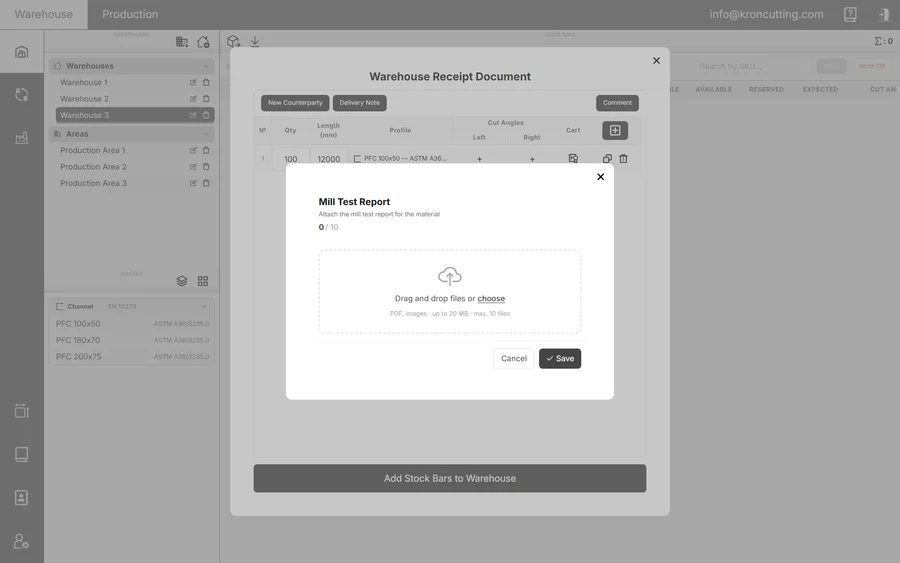
A Receipt document is created with a sequence number, which doubles as the batch number. The profiles appear in the Expected column.
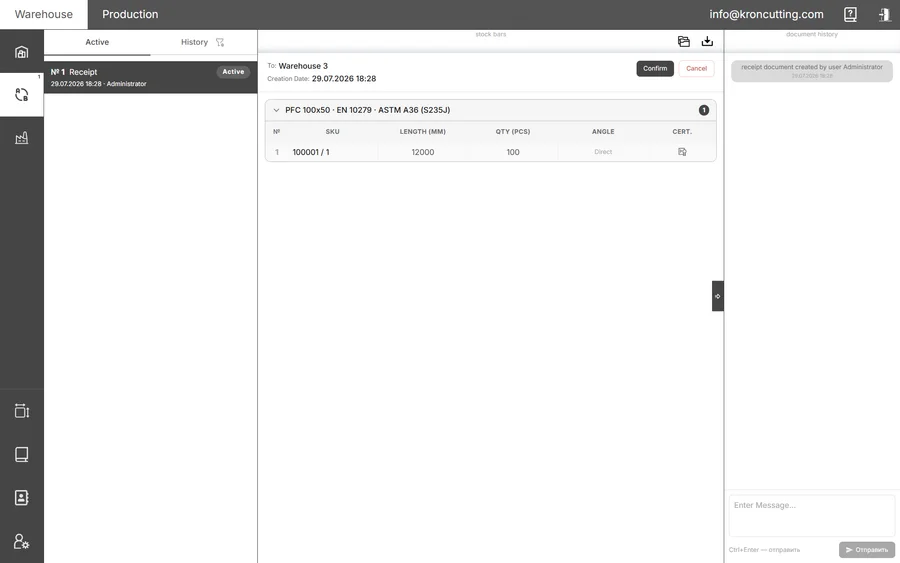
From there:
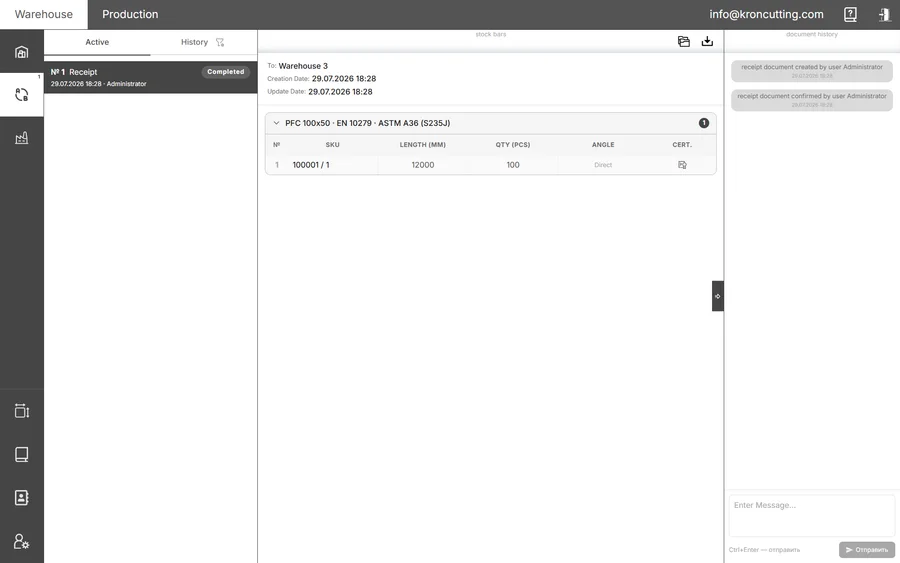
- Confirm — the profiles move from Expected into the quantity on hand, the status changes from Active to Completed, and the document moves from Active to History.
- Cancel — the profiles are removed from Expected.
Transfer
- At the source warehouse, select the profiles and tick the batch you want. Ticking it inserts the maximum available quantity in the adjacent field, which you can then reduce.
- Click Move in the top-right.
- In the transfer window, select the destination and confirm.
A Transfer document records where the material came from, where it went, when it was created, and the profile information. It can be confirmed, cancelled, or processed as a partial transfer if the material moves gradually.
Write-off
Created the same way as a transfer but without a destination, and it requires confirmation.
Profiles leave the quantity on hand only after the write-off is confirmed.
Remnant receipt
This document turns a remnant into warehouse stock.
Remnant Receipt documents are created on the production area, in the Waste Manager. Confirming or cancelling them is the warehouse's responsibility.
- Confirmation — the items become warehouse stock available for cutting. Each stores information about its parent stock bar and inherits its mill test reports and other documents.
- Cancellation — everything returns to the Waste Manager in the production document.
A remnant carries a unique mark, stamped at the moment of production, in 10-10-10 format.
Once it enters a Remnant Receipt document it is also assigned a SKU like any other stock bar, and
the two are written together with a slash: 182839 / 10-10-10. The mark serves as the batch number
and as the permanent identifier of that bar for the rest of its life.
Disposal
A document for the irreversible removal of production waste — scrap metal. It accounts for everything, down to the smallest pieces. Created in a production document in the Production module; confirmation and cancellation are the warehouse's responsibility.
No SKU is assigned to disposed elements. They are leaving.
Supply requests
When a production document is created in the Production module, a supply request for the stock bars that document needs appears in the Warehouse module. Transfer documents to the production area selected on the production document are generated from it. If the bars live in several warehouses, KRON creates a transfer from each.
Inside the request is a list of stock bars showing the warehouses that hold them. KRON suggests taking the maximum from whichever warehouse has more, and you can change the quantity by hand.
Rules worth knowing
Transfer documents are only generated if the requirement is fully covered. If you need 10 I-beams and specify 9, no transfers are generated at all.
- When reservation happens. Bars are reserved for a production document only at the moment you click Generate transfer documents. Before that, anyone with warehouse access can move them, right up until they reach the area.
- Transfers stay linked to the request. Cancelling an automatically generated transfer returns the bars to the request, and you have to generate the transfers again to continue.
- The availability bar shifts. Once the transfers are generated and confirmed, the stock availability bar in the production document moves to reflect it.
If bars that no request has reserved end up on an area, a new request will reserve them automatically if it needs them. To remove that reservation you have to cancel the production document.